
Error Codes
Error 0: NoError
No error — the application uses this code when there is no failure; you should not see it as an error under normal circumstances.
Solution:
- If everything works, no action is needed.
- If a message or log still mentions an error despite code 0, restart AmneziaVPN and repeat the action.
- If the error persists, email us at [email protected] or ask for help in our Telegram community.
Error 100: UnknownError
Unknown error — can occur under various circumstances.
Solution:
- Restart the application.
- Try clearing the application cache.
- Try removing the server or protocol and reconnecting.
- If the error persists, email us at [email protected] or ask for help in our Telegram community.
Error 101: InternalError
Internal error — can occur due to incorrect operation of Qt libraries or for other reasons.
Solution:
- Restart the application.
- Check whether the application correctly detects the protocols already installed on the server. If the problem appeared after changing server settings, run a check of installed Amnezia services on the server in the Management tab in connection settings.
- Try removing the server connection and adding it again.
- If the error persists, email us at [email protected] or ask for help in our Telegram community.
Error 102: NotImplementedError
Function not implemented — the error may occur when trying to restore AmneziaVPN settings from a backup file created in a newer version of AmneziaVPN.
Protocols configured in newer versions of AmneziaVPN may be incompatible with older versions and vice versa.
Solution:
- Install the same version of AmneziaVPN on your device that was used to create the backup file.
- If the error persists, email us at [email protected] or ask for help in our Telegram community.
Error 103: AmneziaServiceNotRunning
Background service not running — the error may occur on Linux, Windows, or macOS. Check whether the service is running on your system. If it is stopped, start it and restart the application.
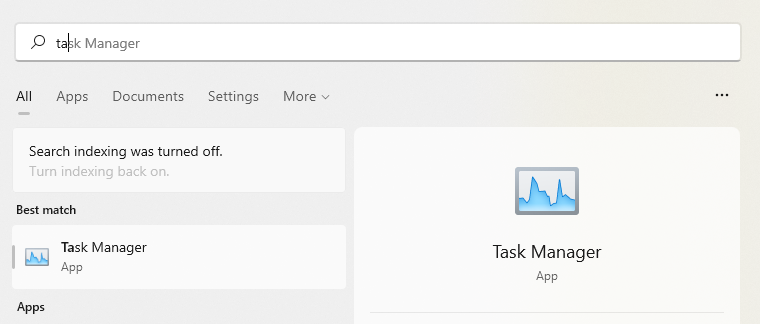
1. Open Task Manager with the Ctrl+Alt+Del key combination.
2. Go to the "Details" tab.
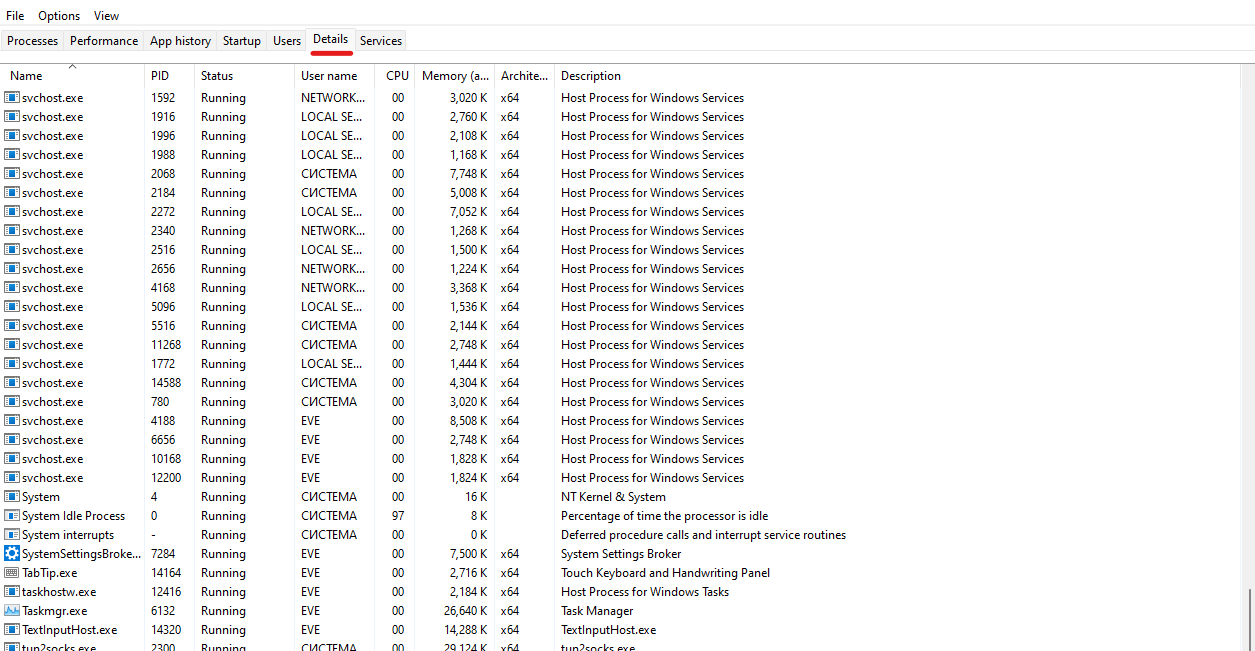
3. Enter amnezia in the search/filter field at the top of the window.
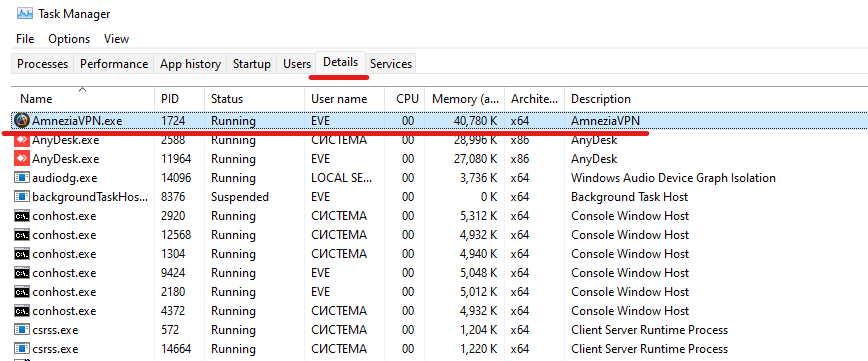
4. If the AmneziaVPN-service process is not found, go to the "Services" tab and check the status of the AmneziaVPN-service service.
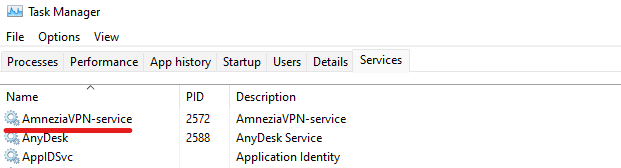
5. If the AmneziaVPN-service service is stopped, try to start it.
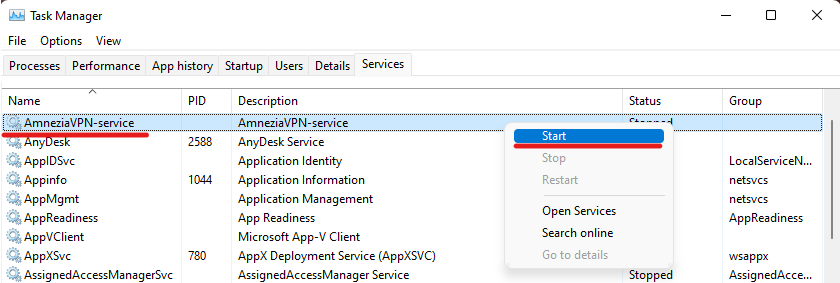
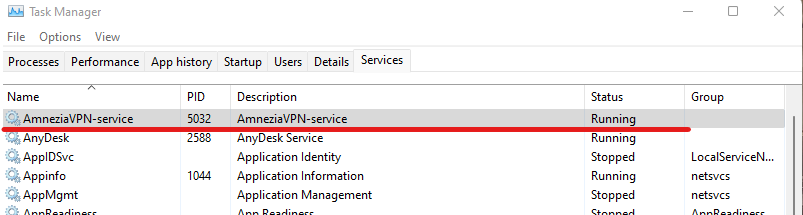
6. If the AmneziaVPN-service service is running and the "Details" tab shows the AmneziaVPN-service.exe process, proceed to the next step.
-b12cae935e1d2660c3b6f032880a6e14.png)
7. Try to establish a connection in the AmneziaVPN app.
-0676f138fd0d428eb7d0bcfe4f9a59d7.png)
8. If you could not start AmneziaVPN-service from Task Manager or need additional diagnostics, open Services via "Services" (Management Console).
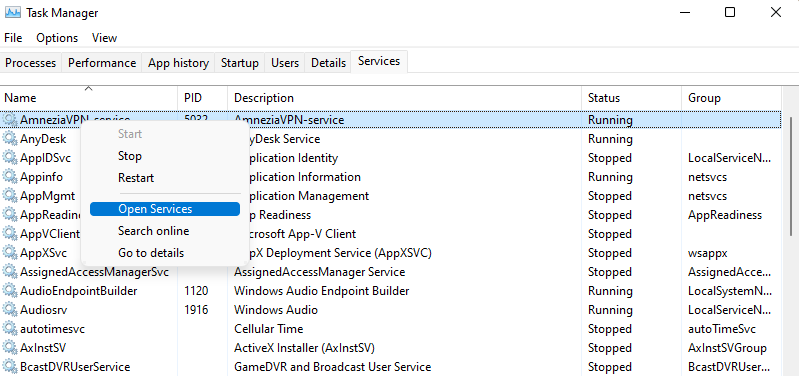
9. Find AmneziaVPN-service in the list of services and check its status and startup type. By default, the startup type should be automatic.
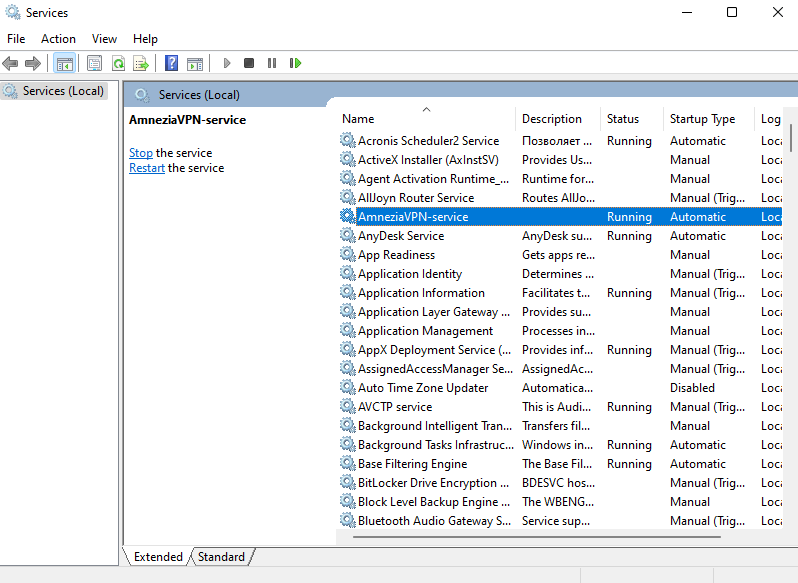
10. Try to start the AmneziaVPN-service from the Management Console.
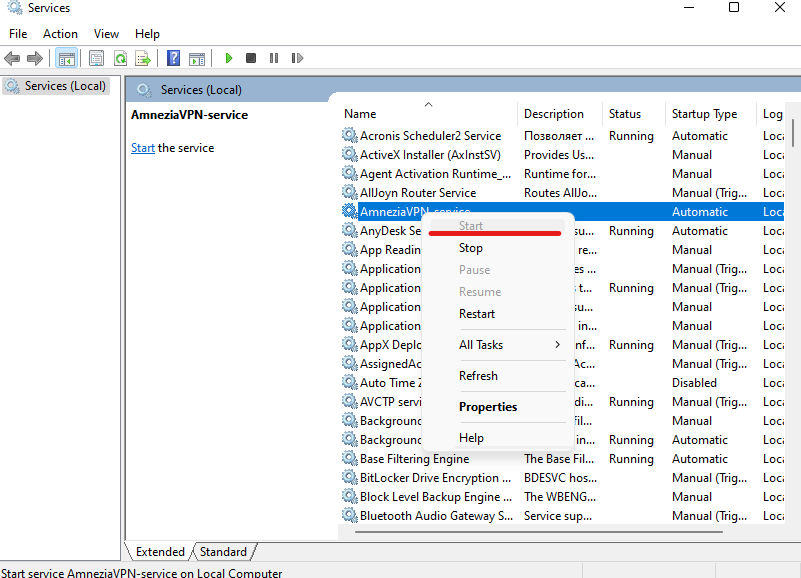
11. If the service starts, its status will change to "Running". After that, try connecting again in AmneziaVPN.
If an error message appears when starting AmneziaVPN-service in the Management Console, use it to diagnose the cause.
-aee436e82865d58f2df04005db4f8202.png)
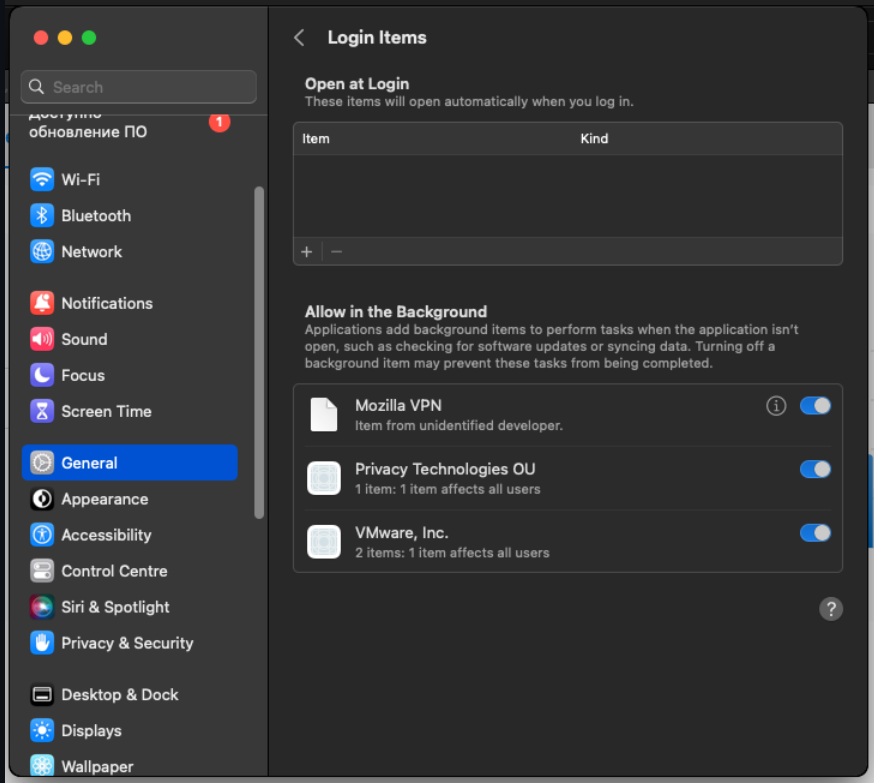
On macOS, open System Preferences → General → Login Items and Extensions and allow background activity for Privacy Technologies OU.
If the error persists, email us at [email protected] or ask for help in our Telegram community.
Error 104: NotSupportedOnThisPlatform
The selected protocol is not supported on the current platform — this happens when the current AmneziaVPN app on your device cannot work with this VPN protocol.
Solution:
- Choose another protocol supported on this device.
- Update AmneziaVPN to the latest version from the official download page (mirror).
- If you specifically need this protocol, use the connection on another supported platform.
- If the error persists, email us at [email protected] or ask for help in our Telegram community.
Error 200: ServerCheckFailed
Server check failed — occurs when trying to add a new server.
Solution:
- Verify that the server meets the minimum requirements and mandatory conditions.
- If the error persists, email us at [email protected] or ask for help in our Telegram community.
Error 201: ServerPortAlreadyAllocatedError
Server port already used. Check for another software — this error means that the port required by the protocol in AmneziaVPN is already in use by other software.
Solution:
- If the protocol allows, change the port:
- For OpenVPN, a randomly selected port from the range 30000–50000 is used by default, but you can specify another if needed.
- For WireGuard, a randomly selected port from the range 30000–50000 is used by default, but you can specify any other UDP port if needed.
- IKEv2 uses ports 500 and 4500; they cannot be changed.
- OpenVPN over Cloak uses port 443 by default. It can be changed, but we do not recommend it: port 443 corresponds to web traffic, and on other ports VPN traffic is easier to detect even when masked as a website.
- For AmneziaWG, a randomly selected port is used by default. If needed, you can specify any other free UDP port.
- Check that no other software on the server is using this port.
- For Windows: press Win+R, enter cmd, press Enter, run the command
netstat -a. The console will display a list of ports in use. To save the list:netstat -a > filename.txt(by default inC:\Users\Username\).- For Linux: run the command
netstat -pnltu. If you do not have the netstat utility, install it with:
sudo yum install net-tools(RedHat, CentOS)dnf install net-tools(Fedora 22+)sudo apt-get install net-tools(Debian/Ubuntu)- Verify that the ports required by the selected protocol are open on the server (this is configured in the VPS control panel).
- Connect to the server via SSH or open the console through the hosting website and run the command
sudo apt install lsof psmisc, then retry the installation.- If the error persists, email us at [email protected] or ask for help in our Telegram community.
Error 202: ServerContainerMissingError
Error 202 that occurs when installing the SOCKS5 proxy server after April 11, 2026 will be fixed in the next AmneziaVPN release.
If you need the proxy sooner, you can install it on the server manually over SSH. For help or alternative ways to set up a SOCKS5 or MTProto proxy, ask in our Telegram community.
Server error: Docker container missing — occurs when the application cannot find the VPN service container on the server. This can happen when changing settings or if the container was removed manually outside AmneziaVPN.
Solution:
- Add the server connection again.
- Verify that the required server ports are free and not used by other services.
- If the error persists, email us at [email protected] or ask for help in our Telegram community.
Error 203: ServerDockerFailedError
Server error: Docker failed — may occur when installing VPN on the server, changing protocol settings, or if the Docker container was removed manually.
Solution:
- Add the server again.
- Verify that the required ports are free and not used by another service.
- If the error persists, email us at [email protected] or ask for help in our Telegram community.
Error 204: ServerCancelInstallation
Installation canceled by user — the error may occur if you interrupted VPN setup on the server.
Solution:
- If you did not cancel the installation or want to start over, repeat the installation from the beginning.
- If the error persists, email us at [email protected] or ask for help in our Telegram community.
Error 205: ServerUserNotInSudo
The user is not a member of the sudo group — the error occurs when the server user cannot run administrative commands. This usually appears when installing VPN on the server or when adding a configuration file.
Solution:
- If the
sudopackage is already installed, add the user to thesudogroup by runningusermod -aG sudo USERNAMEasroot(replaceUSERNAMEwith the actual username).- If the
sudopackage is not installed, install it and then add the user to thesudogroup.- Try configuring the server as
rootinstead of a regular user.- If allowed by security policy, allow running
sudocommands without a password.- If the server is not administered by you, contact your hosting support.
- If the error persists, email us at [email protected] or ask for help in our Telegram community.
Error 206: ServerPacketManagerError
Server error: Package manager error — occurs when installing VPN on the server if the package manager is already running another task or is corrupted. The application usually receives it after several failed attempts to install the required packages.
Solution:
- Wait for other package installation or updates to finish, then retry.
- Connect to the server via SSH or through the web console and check whether the package manager responds, for example with the command
sudo apt-get install <any_utility>.- If the package manager is frozen, try rebooting the server.
- If the problem persists and there are signs of package manager corruption, contact your hosting support.
- If the error persists, email us at [email protected] or ask for help in our Telegram community.
Error 207: ServerSudoPackageIsNotPreinstalled
The sudo package is not pre-installed on the server — this happens during self-hosted setup when AmneziaVPN can already connect to the server, but cannot run administrative commands because sudo is missing.
Solution:
- If you create the server connection with a username other than
root, try creating a new connection to the same server usingroot.- If you want to use a user other than
root, install thesudopackage on the server, then create the server connection again and retry the installation.- If the error persists, email us at [email protected] or ask for help in our Telegram community.
Error 208: ServerUserDirectoryNotAccessible
The server user's home directory is not accessible — this happens when, after logging in as the user you entered while creating the server connection, AmneziaVPN cannot switch to that user's home directory.
Solution:
- If the server connection uses a username other than
root, try usingrootinstead. We also recommend logging in via SSH as that same user and checking thatcd ~works without an error.- Make sure the home directory exists and that every parent directory on the path to it is traversable. For a typical home directory under
/home/..., both/homeand the user's home directory need the execute (x) bit for the required access.- If the server connection uses
root, check/root, not/home/$USER.- If the server runs Debian 13, update AmneziaVPN to the latest version first and retry.
- If the server runs Debian 13 and the error still appears even with the latest app version, try Debian 12 or another supported image.
- If the error persists, email us at [email protected] or ask for help in our Telegram community.
Error 209: ServerUserNotAllowedInSudoers
Action not allowed in sudoers — this happens when AmneziaVPN cannot run commands through sudo after connecting to the server because the selected user does not have the required rights.
Solution:
- If the server connection uses a username other than
root, try creating a new connection to the same server usingroot.- If you want to use a user other than
root, runecho 'USERNAME ALL=(ALL) NOPASSWD:ALL' | sudo tee /etc/sudoers.d/USERNAMEon the server. ReplaceUSERNAMEwith the username you enter in AmneziaVPN when creating the server connection. After that, create the server connection again and retry the installation. If you remove these permissions later, the error may appear again when you try to make server-side changes through AmneziaVPN.- If the error persists, email us at [email protected] or ask for help in our Telegram community.
Error 210: ServerUserPasswordRequired
The user's password is required — this happens when, after connecting to the server, AmneziaVPN cannot run sudo commands because the server asks for the user's password.
Solution:
- If the server connection uses a username other than
root, try creating a new connection to the same server usingroot.- If you want to use a user other than
root, runecho 'USERNAME ALL=(ALL) NOPASSWD:ALL' | sudo tee /etc/sudoers.d/USERNAMEon the server. ReplaceUSERNAMEwith the username you enter in AmneziaVPN when creating the server connection. After that, create the server connection again and retry the installation. If you remove these permissions later, the error may appear again when you try to make server-side changes through AmneziaVPN.- If the error persists, email us at [email protected] or ask for help in our Telegram community.
Error 211: ServerDockerOnCgroupsV2
Docker error: runc doesn't work on cgroups v2 — occurs when the Docker environment is incompatible with the current cgroups configuration.
Solution:
- Update Docker Engine and related packages
containerdandruncto versions supported by your distribution, then restart Docker and retry the setup in AmneziaVPN.- If that does not help, use a newer OS image or a VPS plan with a newer kernel.
- If the error persists, email us at [email protected] or ask for help in our Telegram community.
Error 212: ServerCgroupMountpoint
Server error: cgroup mountpoint does not exist — occurs when the server does not provide the cgroup support required to run Docker containers.
Solution:
- Reboot the VPS and retry.
- Make sure the server uses a standard kernel and virtualization with Docker support.
- If the server runs on a restricted container plan (for example, some LXC/OpenVZ setups), move it to a full VPS/KVM instance.
- If the error persists, email us at [email protected] or ask for help in our Telegram community.
Error 213: DockerPullRateLimit
Docker error: The pull rate limit has been reached — occurs when AmneziaVPN cannot download the Docker containers needed to install VPN protocols because Docker Hub has temporarily limited downloads.
Solution:
- Wait and try again later: the Docker Hub limit resets over time.
- Run
docker loginon the server with your Docker Hub account and try again. After authentication, Docker Hub raises the download limit.- If the error persists, email us at [email protected] or ask for help in our Telegram community.
Error 214: ServerLinuxKernelTooOld
Server error: Linux kernel is too old — occurs when the kernel version does not meet the requirements for Docker or the selected VPN protocol.
Solution:
- Upgrade the kernel or reinstall from an image that meets the minimum requirements.
- If the provider cannot offer a newer kernel, use another server or plan.
- If the error persists, email us at [email protected] or ask for help in our Telegram community.
Error 300: SshRequestDeniedError
SSH request was denied — the error occurs when the server connection data is incorrect, the server lacks resources, or an updated version of AmneziaVPN is required.
Solution:
- Verify that the entered data is correct.
- Verify that the server is accessible and has sufficient resources: free disk space, memory available, server is not frozen and responds over SSH.
- Restart the server from the hosting panel, then retry.
- Update the application to the latest version from the official download page (mirror).
- If the error persists, email us at [email protected] or ask for help in our Telegram community.
Error 301: SshInterruptedError
SSH request was interrupted — occurs when adding a new server to the app, when connecting to an already added server, or when changing its settings.
Solution:
- Check the stability of your internet connection and retry.
- If the error persists, email us at [email protected] or ask for help in our Telegram community.
Error 302: SshInternalError
SSH internal error — occurs for various reasons:
- Amnezia VPN or Amnezia — the connection is created on an iOS device in an outdated AmneziaVPN app version 4.8.2.0 or lower
- Self-hosted — the server IP is blocked by the ISP; the server was shut down by the hosting provider; the server connection data was entered incorrectly
Solution:
- For Amnezia VPN or Amnezia:
- Update the app in the App Store. If it is unavailable, use the guide: AmneziaVPN not available in App Store.
- For Self-hosted:
- Fully restart the application and retry the action.
- Try performing the same action from another network: via mobile internet, another provider, or if necessary through another VPN.
- If the error occurs only on one network while the action succeeds from another, the issue is related to the server IP being blocked by the ISP. Changing the server IP or renting a server with a different IP will help.
- If the error occurs for any server actions together with errors 300 or 305, additionally check SSH availability and server status.
- If the error cannot be resolved, email us at [email protected] or ask for help in our Telegram community.
Error 303: SshPrivateKeyError
Invalid private key or invalid passphrase entered — occurs when adding a new server to the app, when connecting to an already added server, or when changing its settings.
Solution:
- Verify that the entered key is correct.
- If the error persists, email us at [email protected] or ask for help in our Telegram community.
Error 304: SshPrivateKeyFormatError
The selected private key format is not supported, use openssh ED25519 key types or PEM key types — occurs when adding a new server to the app, when connecting to an already added server, or when changing its settings.
Solution:
- Check the format of the entered key: PEM and ED25519 are supported.
- If the error persists, email us at [email protected] or ask for help in our Telegram community.
Error 305: SshTimeoutError
Timeout connecting to server — the error may occur when connecting to the server or when changing its settings. Port 22 may be closed or blocked on the server, or the server may be inaccessible for some reason.
Solution:
- Ensure the server is powered on and accessible over SSH.
- Verify that the username, password, IP address, and server port (with colon) are specified correctly.
- Ensure the same SSH port is specified on which the server actually accepts connections. You may have changed the port or the default port
22may be blocked on the server.- Restart the server from the hosting panel.
- Try repeating the action from another internet source.
- If the error persists, email us at [email protected] or ask for help in our Telegram community.
Error 400: SshScpFailureError
SCP error: Generic failure — usually occurs when installation is not run as root or the user has insufficient sudo privileges.
Solution:
- Create a server connection as the
rootuser and retry the action.- Add the user under whom the action should be performed to the
sudogroup and allow runningsudocommands without a password.- If the error persists, email us at [email protected] or ask for help in our Telegram community.
Error 500: OpenVpnConfigMissing
OpenVPN configuration missing — the error occurs when using the AmneziaVPN app on Windows, Linux, or macOS.
Solution:
- Try rebooting the device and reconnecting.
- If the error persists, email us at [email protected] or ask for help in our Telegram community.
Error 501: OpenVpnManagementServerError
OpenVPN management server error — the error occurs when using the AmneziaVPN app on Windows, Linux, or macOS.
Solution:
- Try rebooting the device and reconnecting.
- If the error persists, email us at [email protected] or ask for help in our Telegram community.
Error 503: ConfigMissing
Configuration missing. The error occurs when establishing a VPN connection in the desktop version of the app.
Solution:
- Try clearing the cache, rebooting the device, and reconnecting.
- If the error persists, email us at [email protected] or ask for help in our Telegram community.
Error 600: OpenVpnExecutableMissing
OpenVPN executable missing — the error may occur when connecting to VPN. This usually means that file installation failed, files were corrupted, or the system cannot find them.
Solution:
- Reboot the device and reinstall the application.
- If the error persists, email us at [email protected] or ask for help in our Telegram community.
Error 601: ShadowSocksExecutableMissing
Shadowsocks (ss-local) executable missing — usually means that file installation failed, files were corrupted, or the system cannot find them.
Solution:
- Reboot the device and reinstall the application.
- If the error persists, email us at [email protected] or ask for help in our Telegram community.
Error 602: CloakExecutableMissing
Cloak (ck-client) executable missing — usually means that file installation failed, files were corrupted, or the system cannot find them.
Solution:
- Reboot the device and reinstall the application.
- If the error persists, email us at [email protected] or ask for help in our Telegram community.
Error 603: AmneziaServiceConnectionFailed
Amnezia helper service error — usually means that the AmneziaVPN-service is corrupted, removed, or cannot be started.
Solution:
- Reboot the device.
- Reinstall the application.
- On macOS, open
System Preferences→General→Login Items and Extensionsand verify that background activity is allowed forPrivacy Technologies OU.- If the error persists, email us at [email protected] or ask for help in our Telegram community.
Error 604: ExecutableMissing
Internal error — occurs when files required for AmneziaVPN have been removed from C:\Program Files\AmneziaVPN.
Solution:
- If security software on your system (antivirus/firewall) recently blocked or removed AmneziaVPN files, add those files to the exclusions list. If the error remains, reinstall AmneziaVPN.
- If the error persists, email us at [email protected] or ask for help in our Telegram community.
Error 605: XrayExecutableMissing
Internal error — occurs when files required for the XRay protocol have been removed from C:\Program Files\AmneziaVPN.
Solution:
- If security software on your system (antivirus/firewall) recently blocked or removed AmneziaVPN files, add those files to the exclusions list. If the error remains, reinstall AmneziaVPN.
- If the error persists, email us at [email protected] or ask for help in our Telegram community.
Error 606: Tun2SockExecutableMissing
Internal error — occurs when files required for the XRay protocol have been removed from C:\Program Files\AmneziaVPN\xray.
Solution:
- If security software on your system (antivirus/firewall) recently blocked or removed AmneziaVPN files, add those files to the exclusions list. If the error remains, reinstall AmneziaVPN.
- If the error persists, email us at [email protected] or ask for help in our Telegram community.
Error 700: OpenVpnAdaptersInUseError
Can't connect: another VPN connection is active — the error may occur when connecting via OpenVPN if the OpenVPN adapter is already in use by another application.
Solution:
- Check whether another VPN application connected to OpenVPN is enabled. Disable it.
- Try rebooting the device.
- Restart the application.
- If the error persists, email us at [email protected] or ask for help in our Telegram community.
Error 701: OpenVpnUnknownError
Internal error — occurs when connecting via OpenVPN.
Solution:
- Check whether another VPN application connected to OpenVPN is enabled. Disable it.
- Try rebooting the device.
- Restart the application.
- If the error persists, email us at [email protected] or ask for help in our Telegram community.
Error 702: OpenVpnTapAdapterError
Can't setup OpenVPN TAP network adapter
Solution:
- Remove the OpenVPN TAP adapter and reconnect to VPN via OpenVPN.
- If that does not help, install OpenVPN 2.6.
- If the error persists, email us at [email protected] or ask for help in our Telegram community.
Error 703: AddressPoolError
VPN pool error: no addresses available — the error means that there are no more available addresses for WireGuard and AmneziaWG configurations. AmneziaVPN supports up to 254 WireGuard configurations on a single server.
Solution:
- If you are sure that fewer than 254 addresses are in use, try removing WireGuard or AmneziaWG and reconnecting.
- If addresses have actually run out, use another server or another protocol.
- If the error persists, email us at [email protected] or ask for help in our Telegram community.
Error 800: OpenSslFailed
OpenSSL failed — may occur when connecting to VPN.
Solution:
- Try rebooting the computer and reconnecting.
- If the error persists, email us at [email protected] or ask for help in our Telegram community.
Error 801: ShadowSocksExecutableCrashed
Internal error — occurs when the Shadowsocks component crashes while establishing the connection.
Solution:
- Close and reopen AmneziaVPN, then retry the connection.
- If the same error appears again, restart the device.
- Update or reinstall AmneziaVPN if the component keeps crashing.
- If the error persists, email us at [email protected] or ask for help in our Telegram community.
Error 802: CloakExecutableCrashed
Internal error — occurs when the Cloak component crashes while establishing the connection.
Solution:
- Close and reopen AmneziaVPN, then retry the connection.
- If the same error appears again, restart the device.
- Update or reinstall AmneziaVPN if the component keeps crashing.
- If the error persists, email us at [email protected] or ask for help in our Telegram community.
Error 803: XrayExecutableCrashed
Internal error — occurs when the XRay component crashes while establishing the connection.
Solution:
- Close and reopen AmneziaVPN, then retry the connection.
- If the same error appears again, restart the device.
- Update or reinstall AmneziaVPN if the component keeps crashing.
- If the error persists, email us at [email protected] or ask for help in our Telegram community.
Error 804: Tun2SockExecutableCrashed
Internal error — occurs when the tun2socks component crashes while establishing the connection.
Solution:
- Close and reopen AmneziaVPN, then retry the connection.
- If the same error appears again, restart the device.
- Update or reinstall AmneziaVPN if the component keeps crashing.
- If the error persists, email us at [email protected] or ask for help in our Telegram community.
Error 900: ImportInvalidConfigError
The config does not contain any containers and credentials for connecting to the server. The error occurs if the connection key pasted into AmneziaVPN was not copied completely, contains extra characters or spaces, or if the imported configuration or backup file is empty, corrupted, or has an unsupported format.
The error also occurs if you try to open an encrypted configuration or backup file in an outdated version of AmneziaVPN that does not support the Password and Encryption feature.
Solution:
- Copy the connection key completely and without extra spaces or characters.
- When transferring a key to Android TV in the LocalSend app, tap Copy, not Open.
- Ensure that the configuration file you are using has one of the supported formats:
.vpn,.conf,.ovpn, or.json.- Try reissuing the configuration file if the current one is empty or edited with errors.
- Update the AmneziaVPN app if you are trying to import an encrypted file.
- If you cannot resolve the issue, email us at [email protected] or ask for help in our Telegram community.
Error 901: ImportOpenConfigError
Unable to open config file — the error occurs when you try to create a connection using a configuration file that is incompatible with AmneziaVPN.
Solution:
- Make sure the description of the configuration file you are trying to import into AmneziaVPN explicitly states that it contains connection settings for the AmneziaWG protocol. Otherwise, the file may be incompatible with AmneziaVPN.
- If the error appears when you try to import an Amnezia or Amnezia VPN configuration file, email us at [email protected] or ask for help in our Telegram community.
Error 902: NoInstalledContainersError
VPN Protocols is not installed. Please install VPN container at first — the error occurs when you try to connect using a protocol that was changed or removed from the server.
Solution:
- Try recreating the server connection using the IP address, username, and password, and skip setup. After that, run a server check for previously installed protocols and try connecting again. See also: Skip setup.
- If the connection to the required protocol works on another device, share a new
vpn://connection key from that device.- If the error persists, email us at [email protected] or ask for help in our Telegram community.
Error 1000: AndroidError
VPN connection error — the cause may be in either the Android system or the AmneziaVPN app.
The error often occurs when trying to use a configuration from a third-party source whose format AmneziaVPN does not support. For example, Outline keys with IPv6 or DNS server name instead of IPv4 address, or WireGuard and AmneziaWG configurations created manually without using AmneziaVPN or the Amnezia VPN Personal Dashboard.
Solution:
- If the error occurs when trying to use a third-party configuration, ensure that the configuration file you are using has one of the supported formats:
.vpn,.conf,.ovpn, or.json.- The imported connection key must start with
vpn://...orss://....- If the error persists, email us at [email protected] or ask for help in our Telegram community.
Error 1100: ApiConfigDownloadError
Error when retrieving configuration from API — the error means that the AmneziaVPN app could not connect to the server to retrieve the API configuration.
Possible causes:
- no internet connection
- internet fully or partially restricted by "whitelists"
- expired subscription
- active connection limit in Amnezia VPN subscription is full
Solution:
Amnezia: if the connection was created with a key from the bot, try creating the connection through the VPN by Amnezia option in the AmneziaVPN app, or vice versa. Also try resetting the API configuration in Amnezia connection settings.
For more details: Can't connect to Amnezia.
Amnezia VPN: ensure that you are using a key from an active subscription that has an available slot. You can check your subscription in the Personal Dashboard (mirror). If the active connection limit is exhausted, unlink an unused device or revoke an unneeded configuration file, then retry.
For more details: Can't connect to Amnezia VPN.
Switch your internet source, for example by connecting to home Wi-Fi or another mobile connection. Then retry the connection.
If the same connection works on other devices and the error occurs only on one, the issue is likely local to that device: restart the app, try a full reset in app settings, and create the connection again.
Try resetting the API configuration (guide).
If the error persists, email us at [email protected] or ask for help in our Telegram community.
Error 1101: ApiConfigAlreadyAdded
This config has already been added to the application — this error occurs when trying to create an Amnezia connection if another Amnezia connection already exists in the app. The existing Amnezia connection may have been created either with a key from the bot or through the VPN by Amnezia option in the AmneziaVPN app.
You can have two Amnezia connections only if one of them was created through VPN by Amnezia and the other was added with a key from the bot. The order matters: first create the connection through VPN by Amnezia, and only then add the connection with a key from the bot.
You cannot create two Amnezia connections through the VPN by Amnezia option inside the app, regardless of the order.
Solution:
- If you need only one Amnezia connection, use the existing connection or delete it before creating another one.
- If you need to have two Amnezia connections, delete all Amnezia connections. Then first create the Amnezia connection through the VPN by Amnezia option in the app, and after that add the second Amnezia connection using a key from the bot.
- If the error persists, email us at [email protected] or ask for help in our Telegram community.
Error 1102: ApiConfigEmptyError
In the response from the server, an empty config was received
Solution:
- If you connected using a key, verify that you copied it correctly and retry.
- If the connection was via QR code, try scanning it again.
- If you connected via file, try regenerating it and retry the connection.
- If the error persists, email us at [email protected] or ask for help in our Telegram community.
Error 1103: ApiConfigTimeoutError
Server response timeout on api request — the error means that the AmneziaVPN app could not connect to the server to retrieve the API configuration.
Possible causes:
- no internet connection
- internet fully or partially restricted by "whitelists"
- expired subscription
- active connection limit in Amnezia VPN subscription is full
Solution:
Amnezia: if the connection was created with a key from the bot, try creating the connection through the VPN by Amnezia option in the AmneziaVPN app, or vice versa. Also try resetting the API configuration in Amnezia connection settings.
For more details: Can't connect to Amnezia.
Amnezia VPN: ensure that you are using a key from an active subscription that has an available slot. You can check your subscription in the Personal Dashboard (mirror). If the active connection limit is exhausted, unlink an unused device or revoke an unneeded configuration file, then retry.
For more details: Can't connect to Amnezia VPN.
Switch your internet source, for example by connecting to home Wi-Fi or another mobile connection. Then retry the connection.
If the same connection works on other devices and the error occurs only on one, the issue is likely local to that device: restart the app, try a full reset in app settings, and create the connection again.
Try resetting the API configuration (guide).
If the error persists, email us at [email protected] or ask for help in our Telegram community.
Error 1104: ApiConfigSslError
SSL error occurred. Possible causes:
- mobile internet operating in restricted "whitelist" mode
- incorrect time set on the device
Solution:
- Switch your internet source, for example by connecting to home Wi-Fi or another mobile connection. Then retry the connection.
- Synchronize system time.
- If the error persists, email us at [email protected] or ask for help in our Telegram community.
Error 1105: ApiMissingAgwPublicKey
Missing AGW public key — the error occurs when the app did not receive the AGW public key required to process the API response.
Solution:
- Make sure you are using AmneziaVPN downloaded from the official download page (mirror). If the app was downloaded from an unofficial repository or built manually from source files, it may be incompatible with the
vpn://key used to create the connection.- If the error persists, email us at [email protected] or ask for help in our Telegram community.
Error 1106: ApiConfigDecryptionError
Failed to decrypt response payload — the error occurs when the AmneziaVPN app could not process the data received from the API.
Possible causes:
- using an outdated version of AmneziaVPN
- fully or partially restricted internet access operating in "whitelist" mode.
Solution:
Install the latest version of AmneziaVPN from the official download page (mirror).
Switch your internet source, for example by connecting to home Wi-Fi or another mobile connection. Then retry the connection.
Amnezia: try creating the connection again using the VPN by Amnezia option.
For more details: Can't connect to Amnezia.
Amnezia VPN: try changing the VPN protocol and retry the connection.
For more details: Can't connect to Amnezia VPN.
- If the error persists, as a temporary workaround try creating the connection using a configuration file. You can download it from your Personal Dashboard (mirror) in the Configuration files section.
If the error persists, email us at [email protected] or ask for help in our Telegram community.
Error 1107: ApiServicesMissingError
Missing list of available services — the error means that the AmneziaVPN app could not process the data received from the API.
Solution:
Install the latest version of AmneziaVPN from the official download page (mirror).
Switch your internet source, for example by connecting to home Wi-Fi or another mobile connection. Then retry the connection.
Amnezia: try creating the connection again using the VPN by Amnezia option.
For more details: Can't connect to Amnezia.
Amnezia VPN: try changing the VPN protocol and retry the connection.
For more details: Can't connect to Amnezia VPN.
- If the error persists, as a temporary workaround try creating the connection using a configuration file. You can download it from your Personal Dashboard (mirror) in the Configuration files section.
If the error persists, email us at [email protected] or ask for help in our Telegram community.
Error 1108: ApiConfigLimitError
The limit of allowed configurations per subscription has been exceeded — the subscription has exhausted the total limit of active connections. For details on counting rules: Personal Dashboard: Subscription.
This limit includes both devices where a connection was created with the vpn:// key and issued configuration files. Each issued configuration file occupies 1 slot, even if no device is currently connected through it.
When all 7 slots are occupied, you will not be able to issue a new configuration file for another location or connect a new device with the vpn:// key.
Solution:
- Unlink an unused device or revoke an unneeded configuration file in the Personal Dashboard (mirror).
- After freeing at least one slot, retry the connection or configuration file issuance.
- If the error persists, email us at [email protected] or ask for help in our Telegram community.
Error 1109: ApiNotFoundError
Error when retrieving configuration from API — the error means that the AmneziaVPN app could not receive data from the API.
Solution:
Install the latest version of AmneziaVPN from the official download page (mirror).
Switch your internet source, for example by connecting to home Wi-Fi or another mobile connection. Then retry the connection.
Amnezia: try creating the connection again using the VPN by Amnezia option.
For more details: Can't connect to Amnezia.
Amnezia VPN: try changing the VPN protocol and retry the connection.
For more details: Can't connect to Amnezia VPN.
- If the error persists, as a temporary workaround try creating the connection using a configuration file. You can download it from your Personal Dashboard (mirror) in the Configuration files section.
If the error persists, email us at [email protected] or ask for help in our Telegram community.
Error 1111: ApiUpdateRequestError
Please update the application to use this feature — occurs when using an outdated version of AmneziaVPN.
Solution:
- Install the latest AmneziaVPN from the official download page (mirror).
- If the error persists, email us at [email protected] or ask for help in our Telegram community.
Error 1112: ApiSubscriptionExpiredError
Your Amnezia VPN subscription has expired. Please check your email for renewal instructions. If you haven't received an email, please contact our support. — you need to renew the subscription to continue using Amnezia VPN.
Solution:
- Check your email for the renewal message from Amnezia.
- If you did not receive the email or need help with renewal, contact Amnezia VPN support or email [email protected].
Error 1113: ApiPurchaseError
Unable to process purchase — the store could not complete the purchase.
Solution:
- Confirm the payment went through in the App Store or Google Play.
- Wait a short time and retry in case of a temporary store outage.
- If the error persists, email us at [email protected] or ask for help in our Telegram community.
Error 1200: OpenError
QFile error: The file could not be opened — may occur in AmneziaVPN right after installing the app when performing the following actions:
- connecting to your own VPN server
- configuring VPN on the server
- managing guest connections to the server
Solution:
- Go to AmneziaVPN settings (⚙️ icon on the bottom bar) → tap Close application → launch AmneziaVPN again and retry the action.
- If the error persists, email us at [email protected] or ask for help in our Telegram community.
Error 1201: ReadError
QFile error: An error occurred when reading from the file — occurs when AmneziaVPN cannot fully read a configuration, backup, or app data file.
Solution:
- Repeat the same action once.
- If you are importing a file, download or export it again and retry.
- Check that the device has free storage and that the file is not damaged.
- If the error keeps appearing, close and reopen AmneziaVPN or reinstall it.
- If the error persists, email us at [email protected] or ask for help in our Telegram community.
Error 1202: PermissionsError
QFile error: The file could not be accessed — the app does not have access to the required file or folder.
Solution:
- Grant the file or storage permissions requested by the OS.
- Move the file to a local folder such as Downloads and retry.
- On desktop, avoid protected system folders and use a file from a location your user can access.
- If the error persists, email us at [email protected] or ask for help in our Telegram community.
Error 1203: UnspecifiedError
QFile error: An unspecified error occurred — a generic file operation failed and the app could not determine a more specific reason.
Solution:
- Repeat the action once.
- Close and reopen AmneziaVPN and, if needed, restart the device.
- If you are working with an imported file, recreate or re-download it.
- If the error persists, email us at [email protected] or ask for help in our Telegram community.
Error 1204: FatalError
QFile error: A fatal error occurred — the file subsystem reported a severe error and the operation could not continue.
Solution:
- Restart the device and AmneziaVPN.
- Make sure the device has free storage and the file you are using is intact.
- If you have access to your connection data, back it up, then reinstall AmneziaVPN.
- If the error persists, email us at [email protected] or ask for help in our Telegram community.
Error 1205: AbortError
QFile error: The operation was aborted — the file operation was interrupted or cancelled before it finished.
Solution:
- Repeat the action without closing the app or cancelling the operation.
- If you are importing or exporting a file, wait for the process to finish before switching apps or closing the dialog.
- Restart AmneziaVPN and try again if the interruption repeats.
- If the error persists, email us at [email protected] or ask for help in our Telegram community.